

The input bar
New in v3. The composer is a single collapsed row by default — a floating
pill that never crowds the chat above it. Tap the + on the left to slide
open a tray with the mode selector and the image-attach
button; tap it again (it rotates into a ×) to close the tray.
- Enter sends. Shift+Enter inserts a newline.
/opens slash-command autocomplete.@opens autocomplete for instances and scripts in the place, and for skills via@skill:name.- The + button opens the tray; its image-attach button is described in Vision & Images.
Markdown rendering
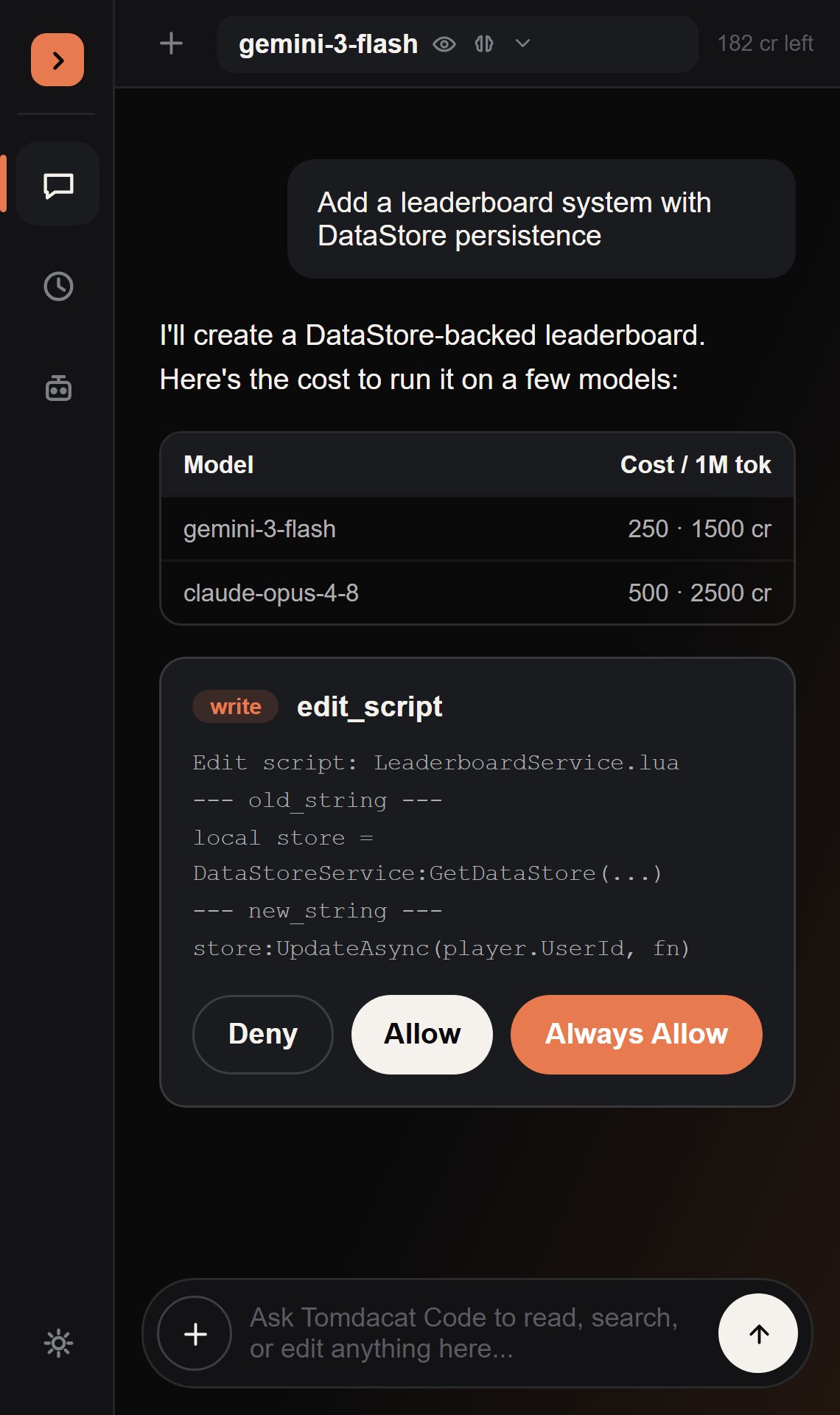
Assistant replies render through a small markdown engine built for this UI: bold, italic, inline code, fenced code blocks, lists, headings — and tables, rendered as a real grid ofFrame instances rather than plain text, since Roblox’s RichText has no <table> tag.
Streaming, live
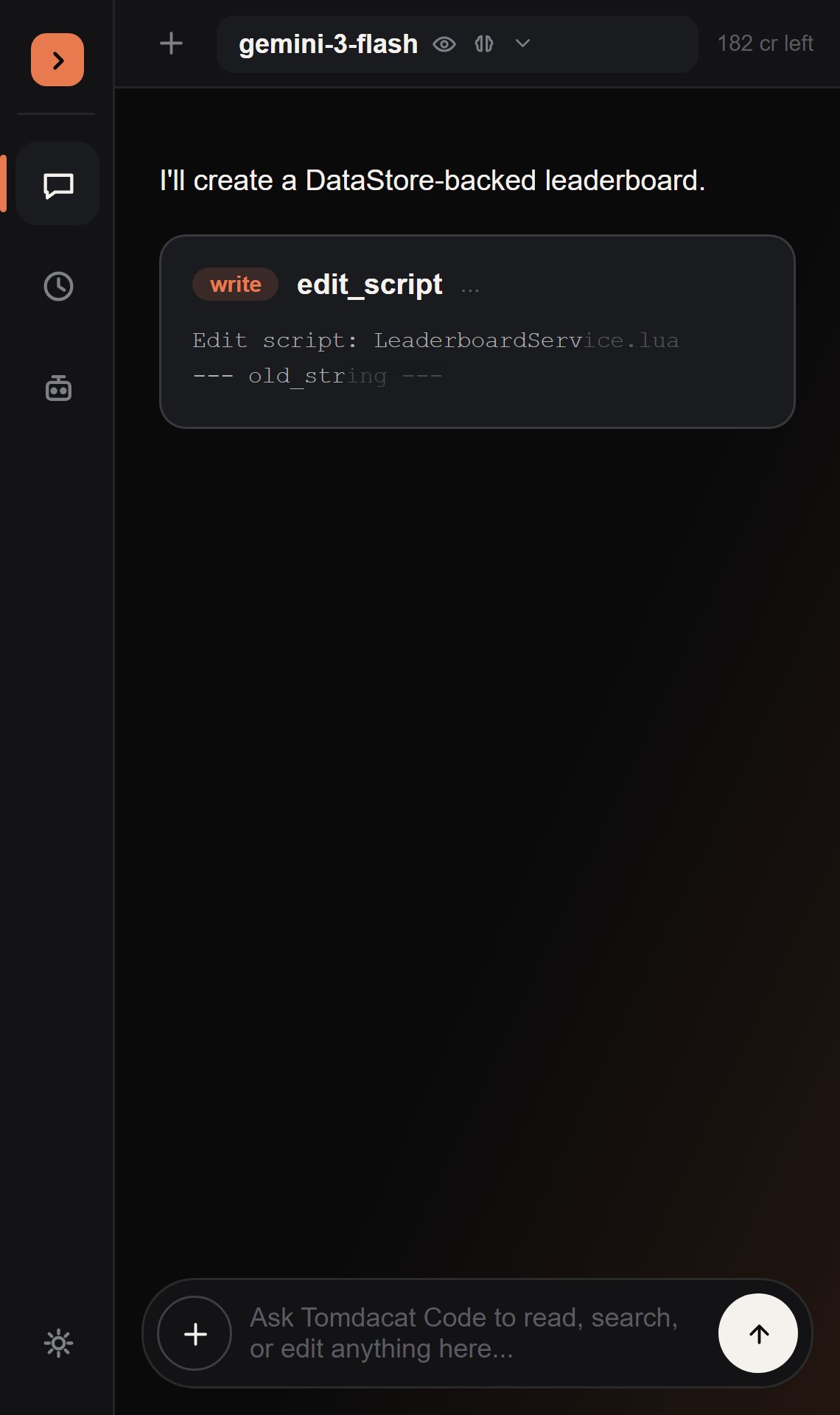
Both halves of a turn stream now, not just the text:- Assistant text
- Tool call arguments
- Reasoning text
Replies fill in token by token as the model generates them, with a
typewriter effect. If the connection can’t stream for some reason, it
transparently falls back to a normal one-shot response — you always get
an answer either way.
Stop, for real this time
Now:- The underlying SSE connection is polled for cancellation roughly every 50ms while it’s open, and closed immediately the moment you hit Stop — instead of waiting up to two minutes for the response to finish on its own.
- If a permission prompt (Allow / Deny / Always Allow) is on screen when you hit Stop, it’s automatically resolved as Deny so the agent loop isn’t left blocked waiting on a button you were never going to click.
/stop.
Reliability, under the hood
New in v3.
- Transient network failures and 5xx responses now retry automatically — up to 3 attempts with backoff — instead of failing the turn outright. A 4xx never retries, since the request itself was the problem.
- Fixed a bug where a response could start streaming and then stall permanently, looking like the agent “reads a skill, thinks, then never responds.” The stream timeout increased from 120s to 180s, and now tells apart partial content that already arrived (shows a real timeout error) from nothing having arrived at all (falls back to a non-streaming request instead of hanging).
Reading the transcript
New in v3.
- The transcript auto-follows new content, but a genuine scroll on your part (wheel, touch, or dragging the scrollbar) pauses that for 3 seconds before it resumes — so reading back through history doesn’t get yanked back to the bottom mid-scroll.
- Click one of your own past messages to copy it: it swaps to a selectable-but-not-editable text box, so a stray keystroke can’t corrupt your own history while you copy it.
- A cost/cache footer can appear under a finished response (e.g.
~0.000123 credits · 42% cached), controlled by a Show Cost Info toggle in Settings (on by default). - A subagent finishing shows up right in the transcript, as a small gray “Subagent done:
label” line — in addition to the toast and the rail badge covered in Subagents.
Hitting the tool-call limit
Each turn is capped at 25 tool-call rounds, to keep a confused agent from looping forever. If it hits that cap mid-task, you get an amber card with a Continue button that just sends the literal message"Continue" — letting the agent pick up exactly where it left off instead of you having to retype anything.
History
Every chat is saved per-game viaChatStore.
New in v3. History moved out of a slide-in sidebar and into its own tab in the
left icon rail.