

The model selector
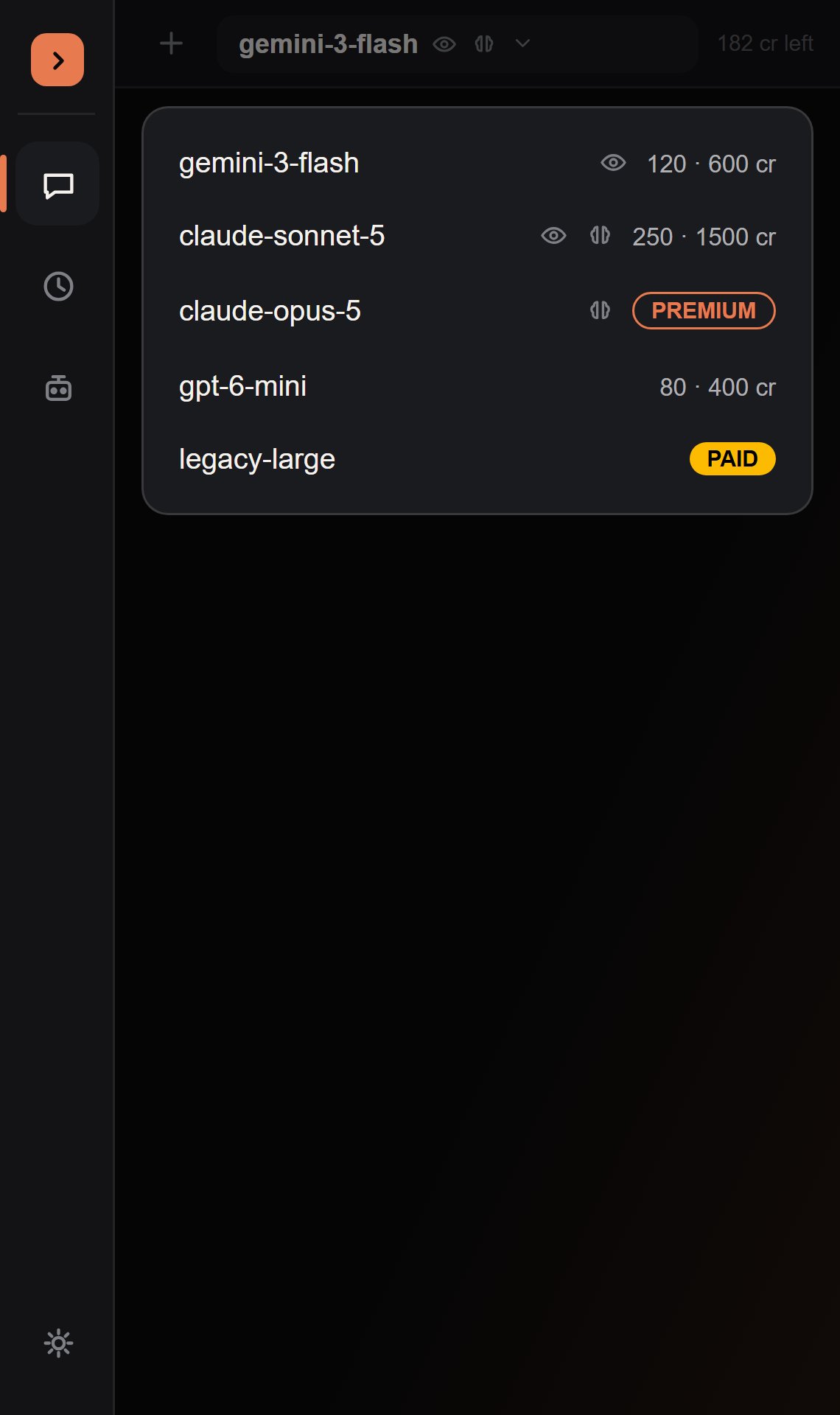
- A small eye icon if the model supports vision.
- A small brain icon if the model supports reasoning.
- Cost per million tokens (input/output, in credits) — or, on a Coding Plan, a PREMIUM badge instead of a price for the strongest models.
- A PAID badge if the model requires a paid plan (API-key accounts only).
/model <name> from the chat.
Default model selection
The rule for picking a default model depends on how you’re billed — the two auth modes don’t have comparable pricing to sort by, so each gets its own logic:- API key
- Coding Plan
Tomdacat Code walks the cheapest-first model list and picks the first one that isn’t
paid-only, falling back to the absolute cheapest model only if every single tool-capable model
turns out to require payment.
Capability badges next to the selector
Reasoning effort
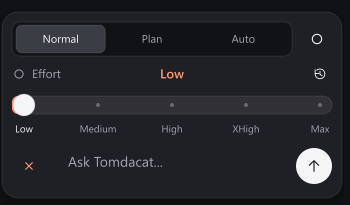
Reasoning effort defaults to Low and persists across sessions. Higher effort asks supported models to spend more work on difficult problems. Support varies by model and provider; selecting Max cannot force a provider to exceed its own limits. Drag the white thumb or click a labeled stop. Arrow keys adjust effort, Home/End select the first/last stop, and reset returns to Low. Escape or loss of focus cancels an active drag. The spring animation respects Reduce motion.
Increasing effort to High or above, or raising the token limit, shows a usage warning and asks for confirmation before saving. Cancel leaves the previous settings in place. A larger existing token limit is retained when effort changes.
Choose 16K / 32K / 64K / 128K in Settings → Generation → Token limit. Thinking and the answer share this limit per model request, including each tool round. More effort or a larger budget can increase latency and API credit or Coding Plan token usage. It does not increase your plan’s session, weekly, or premium allowance.
The request forwards
reasoning_effort (low, medium, high, xhigh, or max) for reasoning-capable models and retains the token budget through streaming fallbacks. Provider caps, timeouts, and compatibility rules can lower the effective limit. Custom Anthropic-format gateways retain their existing thinking behavior.
The thinking indicator
New in v3.
Thinking (low effort) · 5s, so a slow response never looks like it’s stalled.
For reasoning-capable models specifically, once the model’s chain-of-thought starts arriving a chevron appears next to the indicator, and clicking it expands a live trace panel:
- Collapsed, it “peeks” — about 3 lines, bottom-anchored, with older lines scrolling off the top as new ones stream in.
- Expanded, it grows to a fixed 220px scrollable panel.
- The instant the model’s real answer starts streaming, the panel auto-collapses and the indicator relabels itself “Thought for
Ns” — but stays clickable, so you can still reopen the full trace after the fact.
Credits, or usage windows
A small readout sits in the top-right of the model row — what it shows depends on how you’re billed:- API key: a credit counter, updated from the
creditsfield the backend returns on every response. - Coding Plan: a compact usage figure against your current window (e.g.
12K/600K), with the full session/weekly/premium-model breakdown in Settings.
GPT-6.1 Sol launch offer
During the v3.3 launch window,gpt-6.1-sol is free with no per-user launch credit cap. Use your Tomdacat key or Tomdacat Code key. The offer ends October 12, 2026 at 00:00 Europe/Bratislava and does not deduct regular Tomdacat credits.
The launch model supports text chat and tool calling. Images are unavailable. Model context limits and provider availability still apply; availability and terms may change.