

/settings — there’s no separate page per section. Top to bottom, in order:
Account
The first thing you see. A segmented switch between API usage and Coding Plan (exact labels — not “API Key”), a masked-key card for whichever mode is active with an Update button, and, only in Coding Plan mode, a usage card with Session/Weekly/Premium-model progress bars. See Billing for what each mode means and how switching works.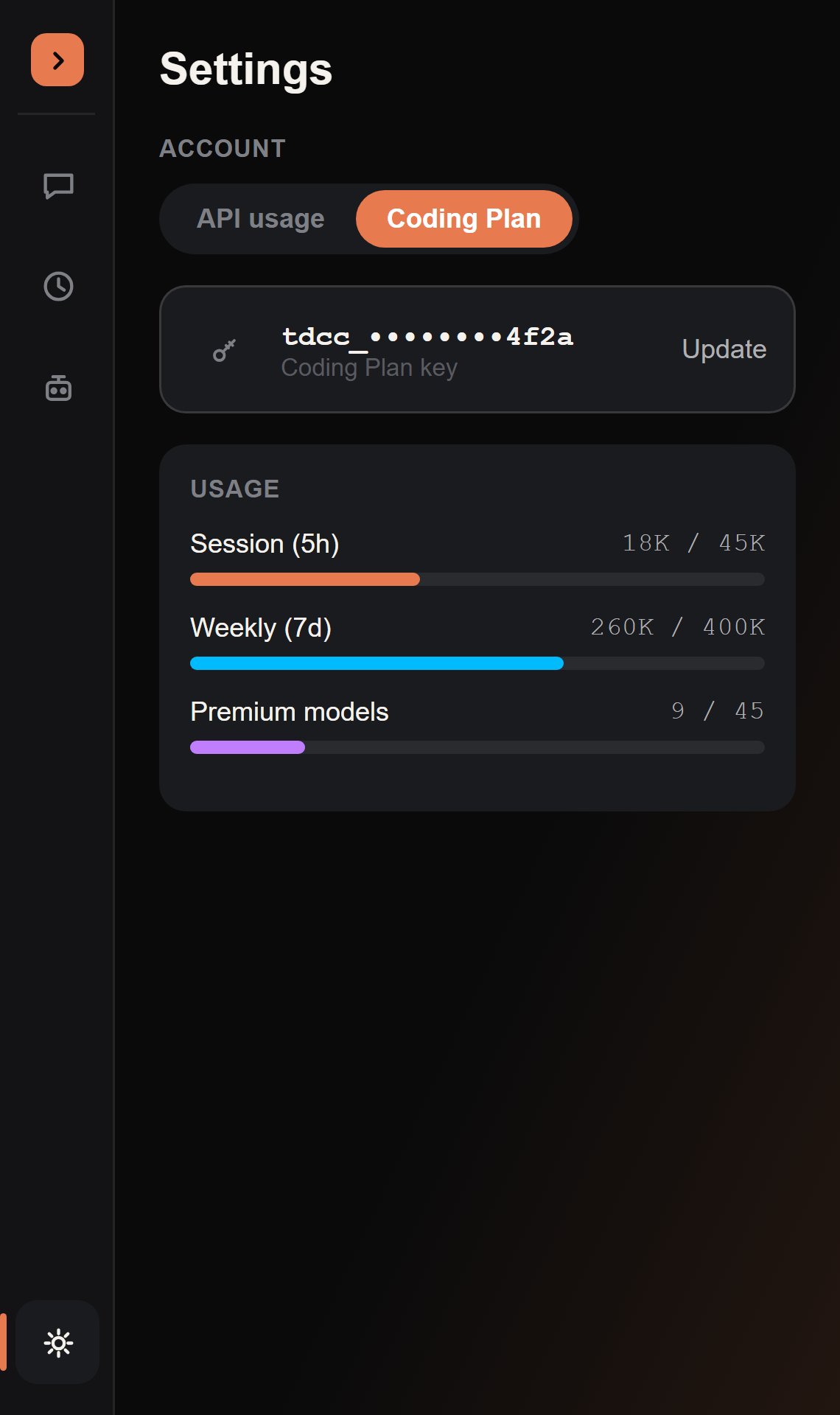
Generation
Token limit offers 16K, 32K, 64K, or 128K tokens, with 16K as the default. This is the combined budget for thinking and the visible answer for each model request, including each tool round. It is separate from Budget Mode below. Raising the limit asks for confirmation before saving: larger budgets can increase latency, spend more API credits, or consume more Coding Plan tokens. Provider limits and timeouts still apply, and this setting never expands your plan allowances. XHigh and Max effort can suggest a larger budget.Budget Mode
An Off/On toggle for the tool-discovery behavior described in Budget Mode, with its own description line right above the switch.Show Cost Info
On by default. Controls whether a small cost/cache footer (e.g.~0.000123 credits · 42% cached) appears under each finished response — see Reading the transcript.
Default Model
A dropdown for the model a brand-new chat starts on. Right under it, a plain info line points out that the Normal / Plan / Auto mode selector lives under the chat input now, not in Settings — see Modes.Tool Permissions
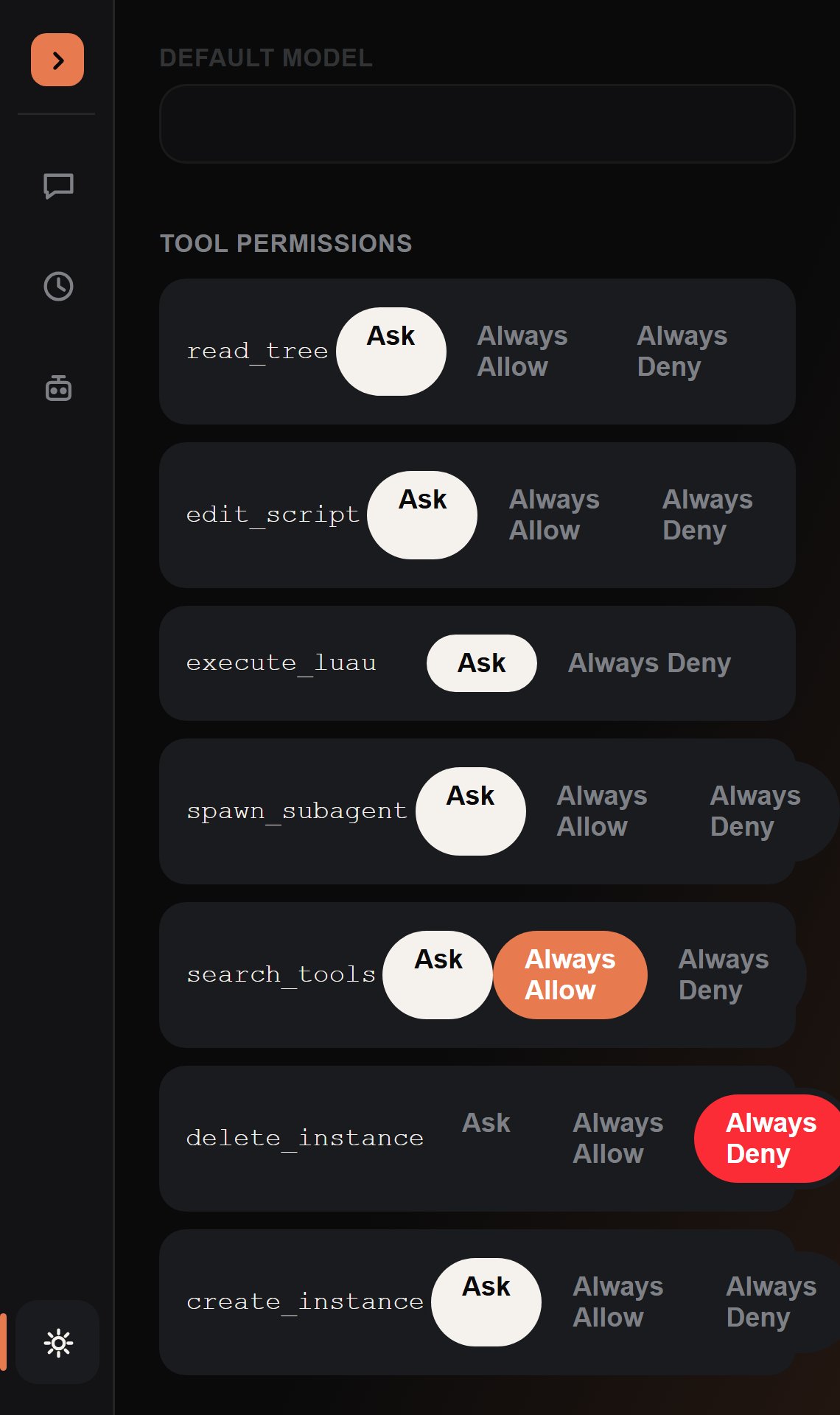
execute_luau, whose row simply doesn’t offer an Always Allow segment at all. See Tools & Permissions for what each mode does.
Skills, Connectors, and Memory
Three nav rows, each opening its own screen (Skills, Connectors, Memory) and each showing a live sublabel so you don’t have to open it to know its state — e.g. a skill count, a connector count like “3 available”, or whether Project Memory has anything saved.Danger Zone
A single Clear chat history for this game button. Like Clear auto memory, it needs a second click to actually run — it relabels to a confirmation first, then to done — so a stray click can’t wipe history by accident.Accessibility
- Reduce motion settles controls immediately rather than animating springs.
- Solid materials reduces transparency.
- Increase contrast strengthens text and surface contrast.