

Find your way around
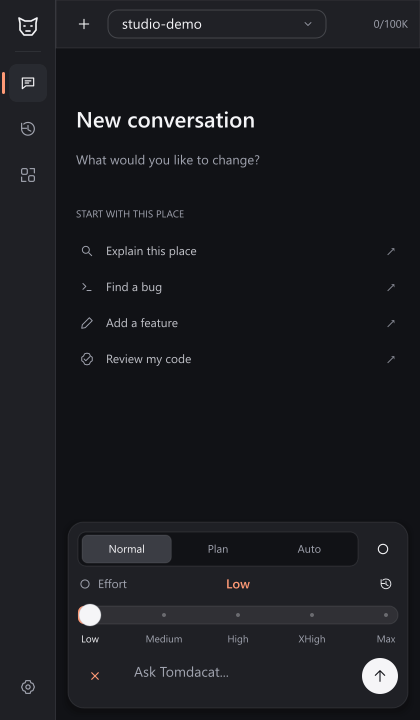
Send your first message
Type into the input bar at the bottom. It auto-grows as you type — up to about five lines — before an internal scrollbar takes over. Press + to reveal the Normal/Plan/Auto mode selector, image attachment, and the inline reasoning effort slider together. The plus springs into a warm-colored ×; press it again to collapse the controls. Reasoning controls appear only for supported models and need no second menu. For more room for thinking and the answer, choose a token limit in Settings → Generation. The limit is per model request; it does not increase your plan allowance.- A thinking indicator while the request is in flight.
- The assistant’s reply streaming in live, word by word.
- If the agent needs to call a tool (like
read_treehere), a tool card appears and fills in with the call’s arguments as they stream — see Chat & Streaming for the full picture.
Approve your first tool call
Read-only tools likeread_tree run automatically. The moment the agent tries something that changes your place — editing a script, creating an instance, anything tagged mutating — it stops and asks:
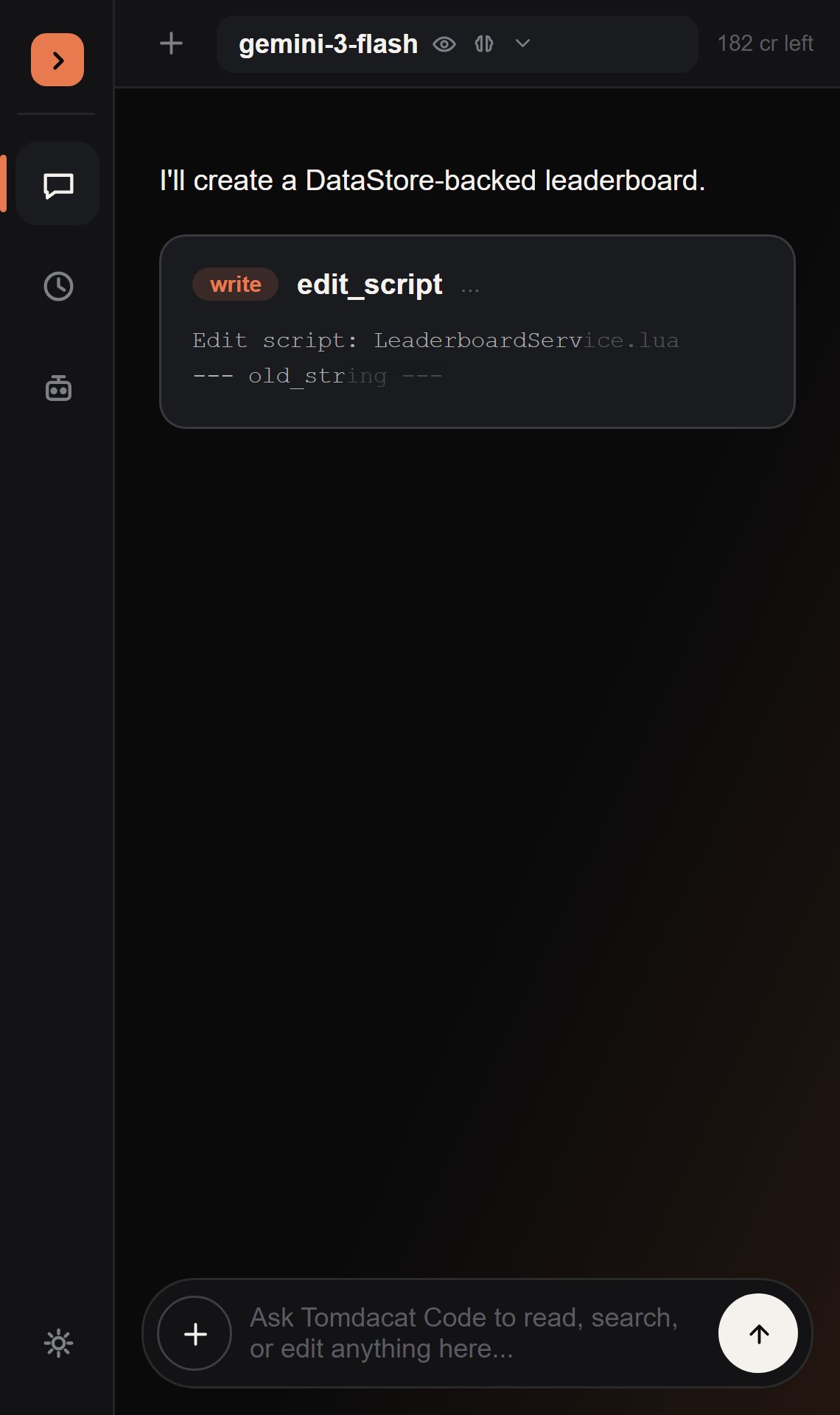
- Deny — the agent gets back
"Denied by user."and adapts. - Allow — runs once, asks again next time.
- Always Allow — runs now and silently for every future call to that tool, until you change it back in Settings.
edit_script, a second dock widget pops open with a real side-by-side diff so you can see exactly what’s about to change before you decide.
Useful slash commands
Type/ in the input box to see the full list with autocomplete. The most common ones:
See Mentions & Commands for the full reference, including
@ mentions for instances, scripts, and skills.
What’s next
Mentions & Commands
Pull instances, scripts, and skills into a message with
@, plus every slash command.Tools & Permissions
See every tool in the catalog and how the permission gate works.
Models & Reasoning
Pick a model, read its badges, and tune reasoning effort.