

The tool catalog
New in v3. If Budget Mode is on, the agent doesn’t see this whole
catalog up front — it only sees
search_tools, and has to look up anything else by name or
keyword before it can call it. Everything below is what it can find.read-only
New in v3. Looks up tools by name or keyword and returns their full schema, unlocking them
for the rest of the turn. Only exists to be called when Budget Mode is
on — see that page for how it changes what the agent can see and call.
read-only
Lists the children of an instance, or every top-level service if no path is given.
read-only
Reads named properties of an instance, or a sensible default set for its class.
read-only
Reads the full source of a Script, LocalScript, or ModuleScript with line numbers.
read-only
New in v2. Reads recent Studio output — prints, warnings, errors — via
LogService:GetLogHistory(), with optional limit and filter arguments.read-only
Lists every available skill (built-in and imported) by name and description.
read-only
Pulls in the full guidance for one named skill.
read-only
Searches every script’s source in the place for a plain-text string, capped at 50 matches.
read-only
New in v3.1. Searches the Roblox Creator Store (Toolbox) by keyword — models, meshes,
decals, plugins, audio, or video. Returns each match’s id, name, creator, price, vote score, and
whether it contains scripts, so
insert_asset can add one straight into the place.read-only · connector
Searches the Fluency Icons library by name. Only available once the
Fluency Icons connector is enabled.
read-only
New in v2.5. Saves a short note to Auto Memory for this place, recalled
automatically in every future session. Doesn’t touch the place itself, so it skips the gate.
read-only
New in v2.5. Lists every model on the account with real pricing, paid/free status, and
capabilities — used before spawning a subagent so the agent can offer
concrete choices instead of guessing.
read-only
New in v2.5. Asks you a clarifying question with one-click suggested answers plus a
free-text fallback. Blocks until you answer; doesn’t change anything on its own.
read-only
New in v2.5. Returns a subagent’s status and most recent message
only — never its full transcript, so checking in doesn’t flood the orchestrator’s own context.
read-only · dispatcher
New in v2.5. Runs several independent tool calls in one step. Each call inside still goes
through its own gate exactly as if called directly —
batch itself just dispatches, it has no
side effect of its own. See the batch section below.mutating
Edits a script via exact string replacement (or a full overwrite if you omit
old_string). Supplies a real before/after diff to the side panel.mutating
Sets one or more properties on an instance, coercing JSON-safe values into
the right Roblox type (
Vector3, Color3, CFrame, UDim2, enums, and more).mutating
Creates a new Instance under a parent path, with optional initial properties.
mutating
Reparents and/or renames an instance.
mutating
Deletes an instance and its descendants. Undoable only via Studio’s own Ctrl+Z, not by the agent.
mutating
New in v3.1. Inserts a Toolbox asset found via
search_toolbox by its numeric id — only
works for Free assets, or paid ones the account already owns. The result includes the inserted
instance’s real structure (hierarchy, bounding-box size), since the agent can’t see the 3D
result visually and has to work from what actually landed instead of guessing.mutating · permission-locked
Executes arbitrary Luau code and returns its result. The escape hatch for
anything the dedicated tools don’t cover — and the one tool whose
permission row in Settings doesn’t even offer an Always Allow segment,
rather than merely defaulting away from it.
mutating
New in v2.5. Launches a background subagent on a delegated task.
Gated like any mutating tool — Ask by default, bypassed in Auto Mode.
mutating
New in v2.5. Sends a follow-up instruction to a subagent and resumes it in the background,
whether it’s still running or already finished.
ChangeHistoryService:TryBeginRecording, so a single Ctrl+Z in Studio cleanly undoes exactly what the agent just did.
Running several calls at once
Thebatch tool lets the agent run multiple independent calls in one step instead of one per round-trip — useful for things like reading three scripts at once. It’s not a way around the permission gate: each call inside a batch is dispatched through the exact same logic as calling it directly, in order, so a mutating call still needs Allow on its own (or is skipped entirely under Auto Mode). Each sub-call shows up as its own card in the transcript, not bundled into one opaque “batch” card.
The permission gate
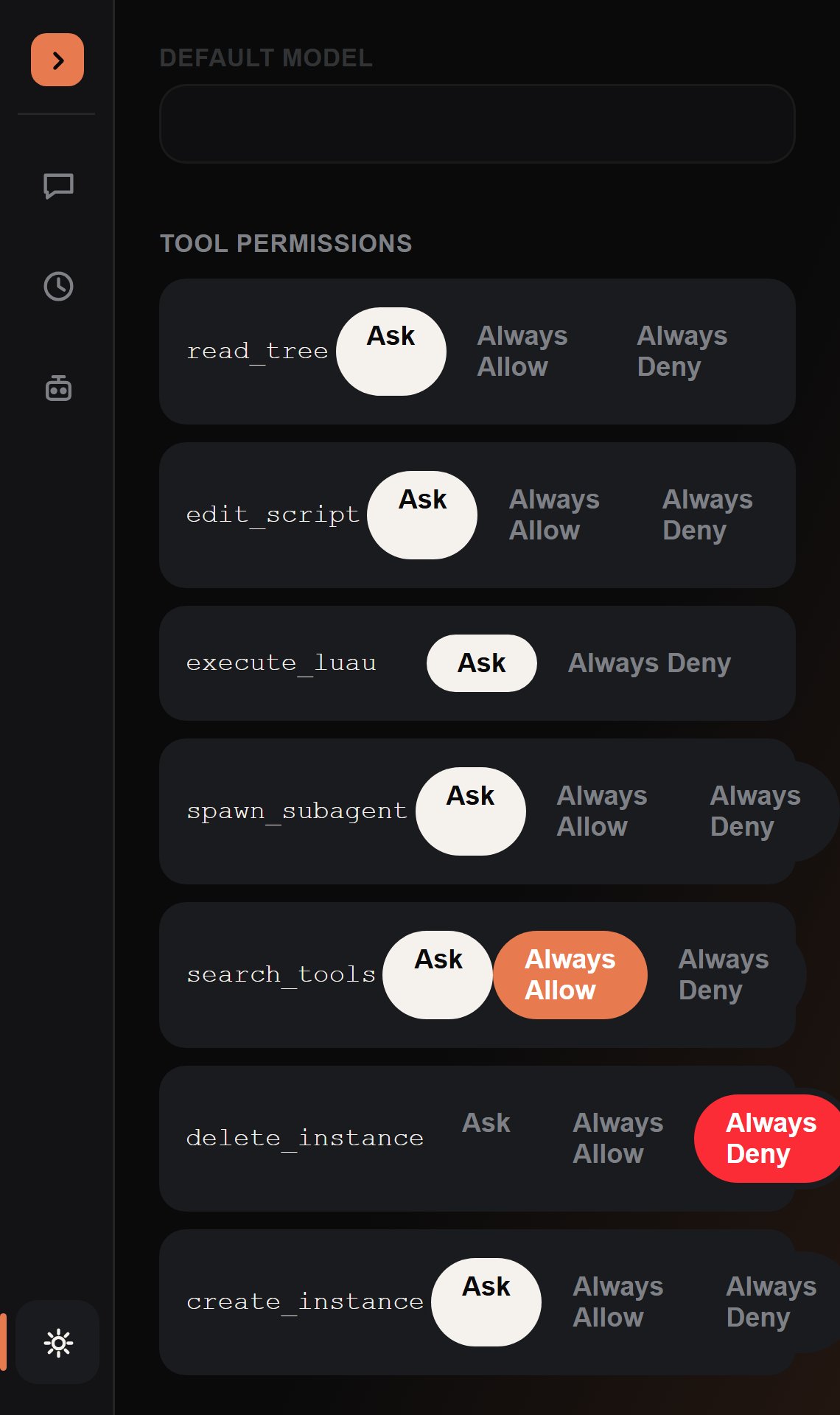
Ask
The default for every mutating tool. Shows a card with Deny / Allow /
Always Allow and waits for your decision before running.
Always Allow
Skips the prompt and runs immediately, every time — until you change it
back. Settable per tool the first time you click Always Allow on a prompt.
Always Deny
The tool call is rejected before it ever runs; the agent gets back
"Denied: this tool is set to Always Deny in Settings." and adapts.Every tool card can be collapsed — a chevron toggles it — and is collapsed by default once
it’s resolved. It only stays expanded automatically while a decision is still pending.
Reviewing a diff
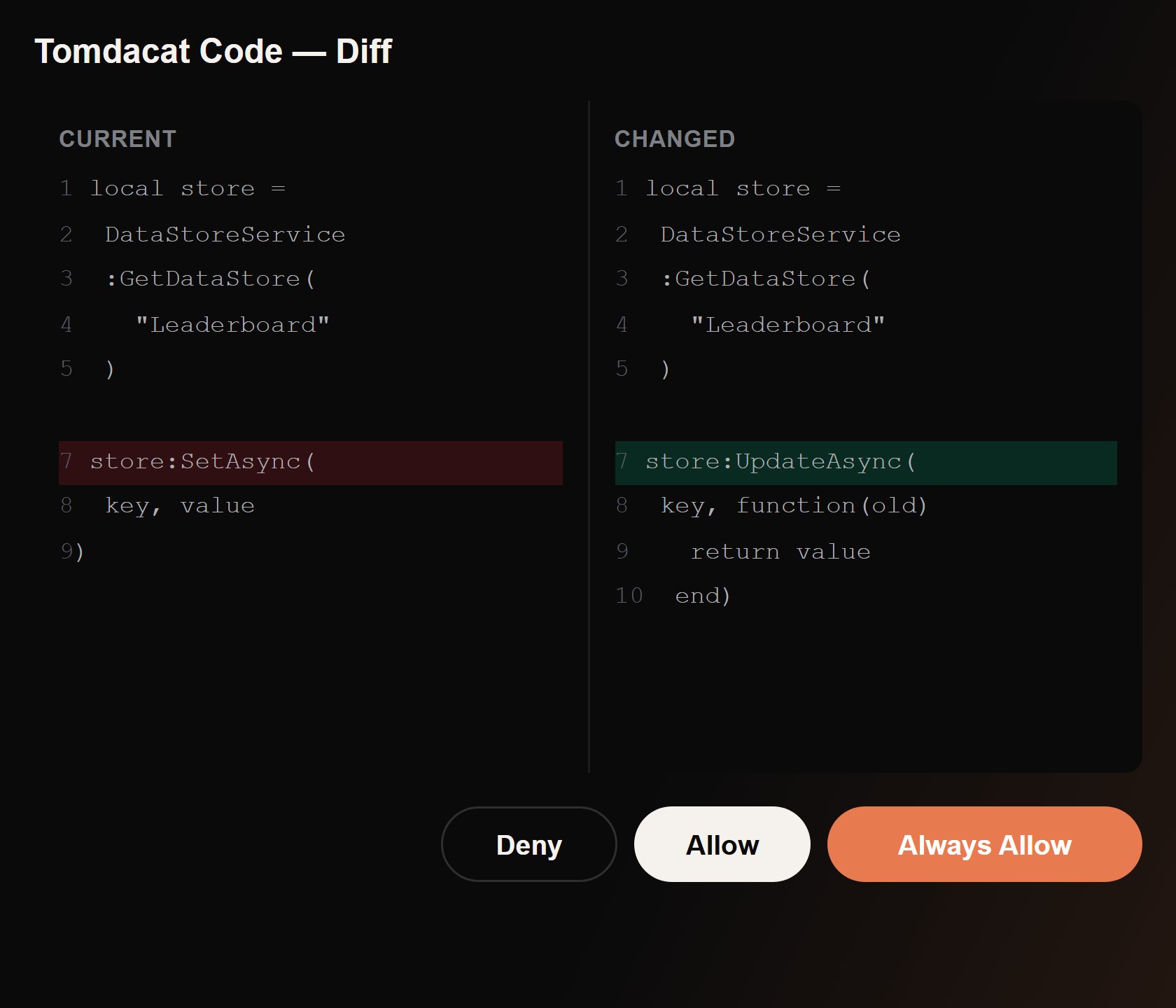
edit_script is the tool on the table, a second dock widget — separate from the chat panel, so you can drag it anywhere in the Studio layout — opens automatically with a real before/after diff of the script:
- Left side shows the script’s current source. Right side shows what it’ll look like if you approve.
- Changed lines are highlighted line-by-line rather than just re-rendering the whole file, so a one-line fix in a 300-line script is obvious at a glance instead of something you have to hunt for.
- If
edit_scriptwas called withold_string/new_string(a targeted replacement), only the surrounding region is shown changed; if it was called as a full overwrite, the whole file shows as replaced. - The same Deny / Allow / Always Allow decision is mirrored in both the chat card and the diff panel — acting on either one resolves the call and closes both, so you’re never stuck deciding twice.
- Closing the diff widget without deciding doesn’t auto-approve or auto-deny anything; the chat card is still sitting there waiting.
What a denied call looks like to the agent
Denials aren’t a dead end — they’re just another tool result. The agent sees"Denied by user." or the Always-Deny message as plain text and is explicitly instructed to adapt instead of repeating the same call, so a No steers the conversation rather than stalling it.